How to Use the 360° View Monitor
Displaying images of the vehicle front/sides
When the shift selector is in the N or D position, press  on the steering switch or tap on the center display.
Images are displayed on the center display.
If any of the following conditions are met, image display of the front/sides of the vehicle ends.
-
(Image is displayed when vehicle speed is less than 20 km/h (12 mph))
The vehicle speed is 20 km/h (12 mph) or faster.
-
(Image is displayed when vehicle speed is about 20 km/h (12 mph) or faster)
The vehicle is driven at 20 km/h (12 mph) or faster for 8 seconds.
-
The shift selector is shifted to the P position.


Displaying images of the vehicle rear
Shift the shift selector to the R position.
Images are displayed on the center display.
Displaying 3D camera view
When the shift selector is in the P position, press on the steering switch or tap on the center display.
Images are displayed on the center display.
You can change the viewpoint and zoom in and out by operating the 3D camera view.
Double tap the indication in the 3D camera view or tap  on the center display to return to the initial viewpoint.
Switching the image
You can change the image displayed on the center display by tapping each icon.
Switching between the image of the front of the vehicle and the image of the side of the vehicle
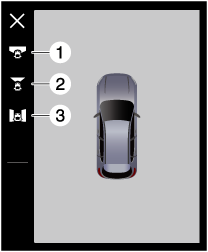
1 Front See-Through View
2 Front wide view
3 Side view
Switching the image of the rear of the vehicle
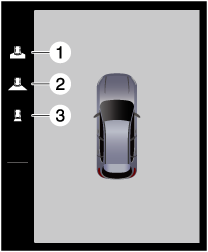
1 Rear See-Through View
2 Rear wide view
3 Rear view
The image may not be able to be switched under the following conditions.
-
Directly after switching the vehicle power ON.
-
The vehicle speed is 20 km/h (12 mph) or faster.
Displaying the Trailer Hitch Guideline
Tap  on the center display.
changes to  and the Trailer Hitch Guideline is displayed.
The Trailer Hitch Guideline can be displayed when a Mazda genuine trailer hitch is connected.
/ is displayed in the following cases.
-
The shift selector is in the R position.
-
The rear view or rear wide view is displayed.
The display of the Trailer Hitch Guideline may not be able to switch in the following cases.
-
Directly after switching the vehicle power ON.
-
The vehicle speed is 20 km/h (12 mph) or faster.
The display of the Trailer Hitch Guideline is not linked to the Driver Personalization System.
Turning off the Rear Cross Traffic Alert (RCTA), rear pedestrian alert, and parking sensor warning sounds
Tap  on the center display.
changes to  and the RCTA, rear pedestrian alert, and parking sensor warning sounds are temporarily turned off.
If an obstruction is detected and a warning sound is activated, / is displayed.
The warning sound may not be able to turn off immediately after turning the vehicle power ON.
Ending the 360° view monitor image
If you do any of the following operations, the 360° view monitor image is ended.
-
(The image of the front of the vehicle or side of the vehicle is displayed.)
-
Press
on the steering switch. -
Tap
or  on the center display.
 -
The display is switched to a display other than the 360° view monitor.
-
The shift selector is shifted from the D or N position to the P position.
-
-
(The image of the rear of the vehicle is displayed.)
The shift selector is shifted from the R position to a position other than D or N.
Viewing the screen
Because there might be a difference between the image displayed on the screen and the actual conditions, always check the safety of the surrounding area directly with your eyes when driving.
The screen brightness and contrast may change depending on the surrounding conditions.
The image display may be temporarily delayed or  may be displayed depending on the surrounding conditions.
Images may be difficult to see due to the weather and surrounding environment, however this does not indicate a problem.
The brightness and color of the image may differ from the actual ones or may be difficult to see depending on the condition of each camera.
The rear view, rear wide view, and rear See-Through View images are reversed left and right.
The actual tires may appear in the top view and front See-Through View.
The parking sensor detection range has limitations. For details, refer to the parking sensor entry.
Refer to Parking Sensor (Search).
The parking sensor detection indication may overlap with the vehicle's bumper, however this does not indicate a problem.
The Trailer Hitch Guideline may appear off-center in the video image.
When any of the following conditions is met, the hitch ball or the trailer coupling may appear deviated from the Trailer Hitch Guideline.
-
A vehicle condition has changed (such as weight, tire pressure).
-
There is a large difference in height between the hitch ball and the trailer coupling.
-
The hitch ball position deviates from normal conditions.
The vehicles displayed in the top view and 3D camera view are CG and may differ from the actual vehicle condition. The color and the condition of the vehicle, and the open/closed status of the liftgate and the doors are not reflected.
Depending on the surrounding conditions, the parking sensor detection indication may not match the actual position of an obstruction or the detection indication may not be displayed.
The Front Cross Traffic Alert (FCTA), Rear Cross Traffic Alert (RCTA), and rear pedestrian alert indications may not match the movement of the actual target object or may not be displayed at all depending on the surrounding conditions.
The parking sensor, Front Cross Traffic Alert (FCTA), Rear Cross Traffic Alert (RCTA), and rear pedestrian alert displays are superimposed on the camera image and may be difficult to see due to the surrounding brightness and color.
The underfloor see-through function may not operate normally under the following conditions.
-
It is snowing.
-
Foreign matter (such as water droplets, snow, mud) is adhering to the camera.
-
There is a water surface (such as rivers, oceans, or puddles).
-
Accessories such as a trailer hitch are installed.
-
An obstruction is close to a camera.
-
The drive wheels spin.
Because the underfloor see-through function displays a combination of past images, the images from the underfloor see-through function may differ from the actual conditions in the following cases.
-
Driving with the hazard warning lights flashing.
-
There are shadows around the vehicle.
-
An obstruction suddenly appears.
-
Sand or snow collapses and moves.
-
The drive wheels spin.
Part or all of the image shot by the underfloor see-through function may be blacked out in the following cases.
-
The vehicle is driven with the steering wheel turned to a certain angle.
-
A certain period of time has passed since the vehicle was stopped.
-
Immediately after starting the vehicle
-
The vehicle speed increases to a certain speed or faster.
The image shot by the underfloor see-through function may not be aligned with the top view and see-through view images depending on the surrounding conditions and the vehicle conditions. In addition, because the underfloor see-through function combines past images, misalignment, overlap, and loss may occur within the image of the underfloor see-through function.
When the 360° view monitor is displayed with the liftgate open, is displayed on the center display.
The viewpoint movement of the 3D camera view and the display range are limited.
Even if the viewpoint is moved by operating the 3D camera view display, there are always blind spots.
Immediately after switching the vehicle power ON, the 3D camera view display may not respond even if the display is operated.
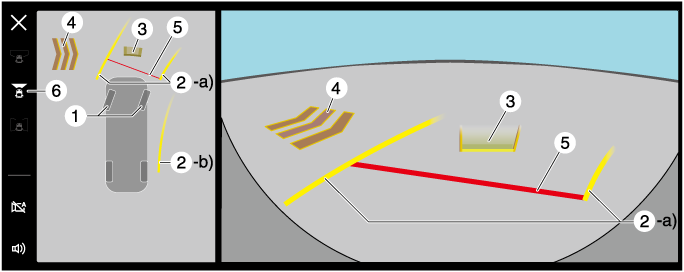
Top view, front wide view
|
|
Indication |
Content |
|---|---|---|
|
1 |
Tire icon |
(Underfloor see-through function operating) Indicates the tire direction. Moves in conjunction with the steering wheel operation. |
|
2 |
Projected vehicle path lines (yellow) |
Indicates the approximate projected path of the vehicle. Moves in conjunction with the steering wheel operation. a) Indicates the path of the front bumper. b) Indicates the path where the inner side of the vehicle is expected to travel. The line is displayed by turning the steering wheel about 90 degrees or more. |
|
3 |
Parking sensor detection indication |
Indicates the detection condition of the parking sensor. |
|
4 |
FCTA detection indication |
Indicates the detection condition of the FCTA. |
|
5 |
Distance guide lines (red) |
Indicates the point about 50 cm (traveling straight) from the front end of the front bumper. |
|
6 |
View status icon |
Indicates which image is selected. |
The front wide view displays the image in front of the vehicle at a wide angle and corrects the image to help detect approaching obstructions from the side. Therefore, it differs from the actual view.
Side view
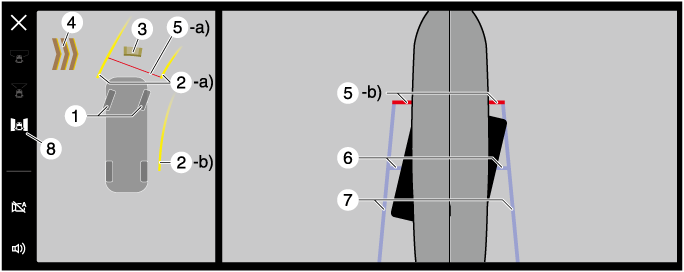
Outside mirrors deployed
Displays the top view and the side view.
|
|
Indication |
Content |
|---|---|---|
|
1 |
Tire icon |
(Underfloor see-through function operating) Indicates the tire direction. Moves in conjunction with the steering wheel operation. |
|
2 |
Projected vehicle path lines (yellow) |
Indicates the approximate projected path of the vehicle. Moves in conjunction with the steering wheel operation. a) Indicates the path of the front bumper. b) Indicates the path where the inner side of the vehicle is expected to travel. The line is displayed by turning the steering wheel about 90 degrees or more. |
|
3 |
Parking sensor detection indication |
Indicates the detection condition of the parking sensor. |
|
4 |
FCTA detection indication |
Indicates the detection condition of the FCTA. |
|
5 |
Distance guide lines (red) |
a) Indicates the point about 50 cm (traveling straight) from the front end of the front bumper. b) Indicates the front end of the front bumper. |
|
6 |
Front wheel contact line (blue) |
Indicates the approximate position of the front wheels. |
|
7 |
Vehicle parallel guide lines (blue) |
Indicates the approximate vehicle width including the outside mirrors. |
|
8 |
View status icon |
Indicates which image is selected. |
Do not turn the steering wheel any more until the vehicle has passed the obstruction, even if the obstruction is not visible on the side view image. If the steering wheel is turned even more, the vehicle may contact the obstruction if it is turned sharply.
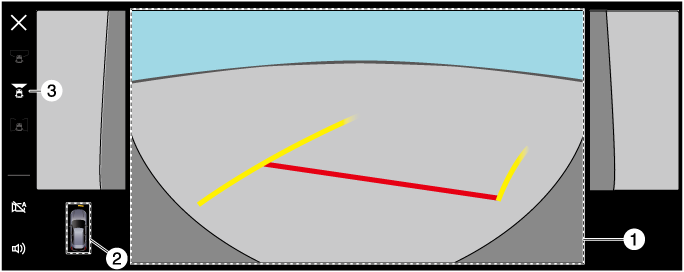
Outside mirrors retracted
Either the front wide view, rear view, or rear wide view are displayed along with the side view.
|
|
Indication |
Content |
|---|---|---|
|
1 |
Main view |
Either the front wide view, rear view, or rear wide view are displayed. |
|
2 |
Parking sensor detection indication |
When the parking sensor detects an obstruction, the obstruction detection status is displayed. |
|
3 |
View status icon |
Indicates which image is selected. |
Side view may not operate properly if the outside mirrors are opened/closed manually or if they are not fully deployed or retracted.
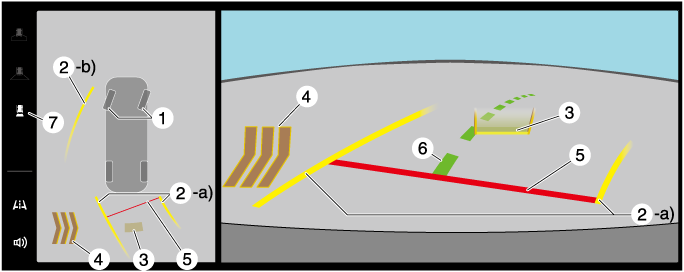
Top view, rear view
|
|
Indication |
Content |
|---|---|---|
|
1 |
Tire icon |
(Underfloor see-through function operating) Indicates the tire direction. Moves in conjunction with the steering wheel operation. |
|
2 |
Projected vehicle path lines (yellow) |
Indicates the approximate projected path of the vehicle. Moves in conjunction with the steering wheel operation. a) Indicates the path of the rear bumper. b) Indicates the path where the outer side of the vehicle is expected to travel. The line is displayed by turning the steering wheel about 90 degrees or more. |
|
3 |
Parking sensor detection indication |
Indicates the detection condition of the parking sensor. |
|
4 |
RCTA, rear pedestrian alert detection indication |
Indicates the detection condition of the RCTA, rear pedestrian alert. |
|
5 |
Distance guide lines (red) |
Indicates the point about 50 cm (traveling straight) from the rear end of the rear bumper. |
|
6 |
Trailer Hitch Guideline |
Indicates the extension guideline for the hitch ball position. Moves in conjunction with the steering wheel operation. |
|
7 |
View status icon |
Indicates which image is selected. |
Even though the back end of the parking space (or garage) displayed on the screen and distance guide lines appear parallel, they may not actually be parallel.
When parking in a space with a division line on only one side of the parking space, even though the division line and the vehicle width guide line appear parallel, they may not actually be parallel.
Top view, rear wide view
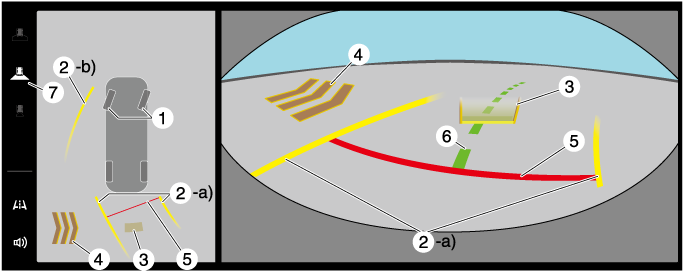
|
|
Indication |
Content |
|---|---|---|
|
1 |
Tire icon |
(Underfloor see-through function operating) Indicates the tire direction. Moves in conjunction with the steering wheel operation. |
|
2 |
Projected vehicle path lines (yellow) |
Indicates the approximate projected path of the vehicle. Moves in conjunction with the steering wheel operation. a) Indicates the path of the rear bumper. b) Indicates the path where the outer side of the vehicle is expected to travel. The line is displayed by turning the steering wheel about 90 degrees or more. |
|
3 |
Parking sensor detection indication |
Indicates the detection condition of the parking sensor. |
|
4 |
RCTA, rear pedestrian alert detection indication |
Indicates the detection condition of the RCTA, rear pedestrian alert. |
|
5 |
Distance guide lines (red) |
Indicates the point about 50 cm (traveling straight) from the rear end of the rear bumper. |
|
6 |
Trailer Hitch Guideline |
Indicates the extension guideline for the hitch ball position. Moves in conjunction with the steering wheel operation. |
|
7 |
View status icon |
Indicates which image is selected. |
The rear wide view displays the image at the rear of the vehicle at a wide angle and corrects the image to help detect approaching obstructions from the side. Therefore, it differs from the actual view.
Top view, front See-Through View
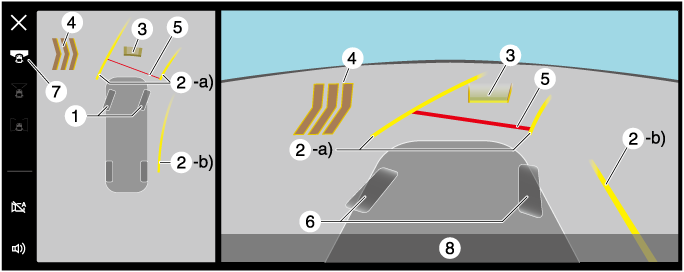
|
|
Indication |
Content |
|---|---|---|
|
1 |
Tire icon |
(Underfloor see-through function operating) Indicates the tire direction. Moves in conjunction with the steering wheel operation. |
|
2 |
Projected vehicle path lines (yellow) |
Indicates the approximate projected path of the vehicle. Moves in conjunction with the steering wheel operation. a) Indicates the path of the front bumper. b) Indicates the path where the inner side of the vehicle is expected to travel. The line is displayed by turning the steering wheel about 90 degrees or more. |
|
3 |
Parking sensor detection indication |
Indicates the detection condition of the parking sensor. |
|
4 |
FCTA detection indication |
Indicates the detection condition of the FCTA. |
|
5 |
Distance guide lines (red) |
Indicates the point about 50 cm (traveling straight) from the front end of the front bumper. |
|
6 |
Tire graphic |
Indicates the approximate position of the tires. Moves in conjunction with the steering wheel operation. |
|
7 |
View status icon |
Indicates which image is selected. |
|
8 |
Message |
If the parking sensor is turned off, a message is displayed. |
The front See-Through View may be displayed as follows.
-
The ground and three-dimensional objects may appear curved.
-
The representation of three-dimensional objects changes at the joints of images and the same object may appear to be duplicated or not connected.
When the parking sensors are turned off, a message is displayed on the center display.
The parking sensor detection indication assists the camera image. It is recommended that you use the front See-Through View with the parking sensor turned on.
Refer to How to Use the Parking Sensor (Search).
Top view, rear See-Through View
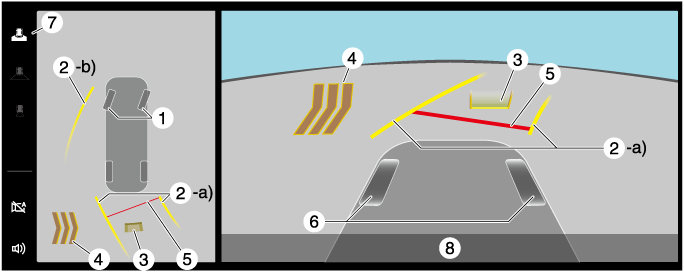
|
|
Indication |
Content |
|---|---|---|
|
1 |
Tire icon |
(Underfloor see-through function operating) Indicates the tire direction. Moves in conjunction with the steering wheel operation. |
|
2 |
Projected vehicle path lines (yellow) |
Indicates the approximate projected path of the vehicle. Moves in conjunction with the steering wheel operation. a) Indicates the path of the rear bumper. b) Indicates the path where the outer side of the vehicle is expected to travel. The line is displayed by turning the steering wheel about 90 degrees or more. |
|
3 |
Parking sensor detection indication |
Indicates the detection condition of the parking sensor. |
|
4 |
RCTA, rear pedestrian alert detection indication |
Indicates the detection condition of the RCTA, rear pedestrian alert. |
|
5 |
Distance guide lines (red) |
Indicates the point about 50 cm (traveling straight) from the rear end of the rear bumper. |
|
6 |
Tire graphic |
Indicates the approximate position of the tires. |
|
7 |
View status icon |
Indicates which image is selected. |
|
8 |
Message |
If the parking sensor is turned off, a message is displayed. |
The rear See-Through View may be displayed as follows.
-
The ground and three-dimensional objects may appear curved.
-
Expressions such as three-dimensional objects change at the seams of the image, and the same objects may be displayed in duplicate or may be connected and not visible.
When the parking sensors are turned off, a message is displayed on the center display.
The parking sensor detection indication assists the camera image. It is recommended that you use the rear See-Through View with the parking sensor turned on.
Refer to How to Use the Parking Sensor (Search).
System problem indication
In the following cases, there might be a problem with the system. Have the vehicle inspected by an Authorized Mazda Dealer.
-
“No camera signal.” is displayed on the center display.
-
The display on the center display does not switch to the camera image even if the shift selector is shifted to the R position.
-
The display on the center display does not switch to the camera image even if the 360° view monitor switch is pressed.
-
A portion of the display on the center display is black.
-
The i-ACTIVSENSE warning light
 in the instrument cluster is turned on.
 -
The guide lines or icons are not displayed on the center display and
is displayed. -
The image remains displayed on the center display even if the shift selector is shifted to a position other than R.
-
A portion of or all of the center display is black even if the shift selector is shifted to the R position.