

AM (Some Models)
-
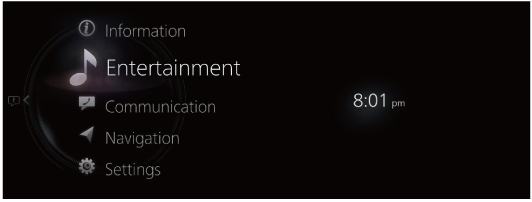
Select “Entertainment” on the home screen.
-
Select “AM” on the Source List screen.
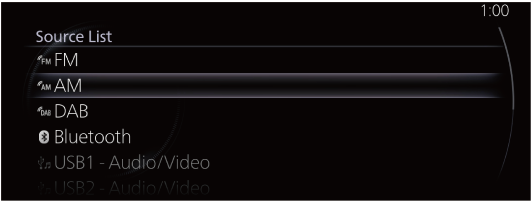
If there is currently playing content, select “Entertainment” to have the contents displayed on the playback screen.
While on the playback screen, press the
 on the commander switch to display the Source List screen.
 -
The playback screen is displayed.
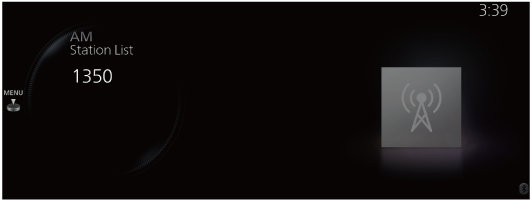
Rotate the
 to display the last list displayed from the Favorites list or Station List for the AM.
When the
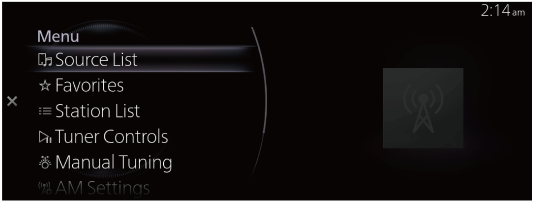
 is displayed, press the to display the menu.


AM radio menu
|
Menu |
Explanation |
|---|---|
|
Source List |
Displays the Source List screen. The audio source can be switched. |
|
Favorites |
Displays the Favorites list of the AM radio. The radio station list registered to your Favorites is displayed where you can select the radio station you want to listen to. If you have no registered Favorites, an empty list is displayed. Refer to Favorites (Search) for the method of registering to Favorites. |
|
Station List |
The radio station list is displayed where you can select the radio station you want to listen to. The list can be updated depending on the region and specifications. (If Option is available and “Update List” can be selected) The list picks up the 10 stations with the strongest radio waves and they are displayed. When Update List is selected, the Station List can be updated at an arbitrary timing. |
|
Tuner Controls |
Displays the control screen (icon) on the playback screen. For details on the operation method for each icon, refer to How to Use the Tuner Controls (icon). |
|
Manual Tuning |
Rotate the displayed frequency dial to select the radio station you want to listen to. |
|
AM Settings (Some Models) |
Sets the AM radio. You can enable/disable the “HD Radio Tuner” or the “Live Event Mode”. When the Live Event Mode is enabled and a real-time broadcast such as a sports event is being broadcast, it is switched forcibly to an analog broadcast. If you have an HD radio broadcast that you always want to receive, disable the Live Event Mode setting. However, depending on the reception conditions, the audio may jump or repeat. |
|
Audio Settings |
Adjusts the sound quality. |
How to Use the Tuner Controls (icon)
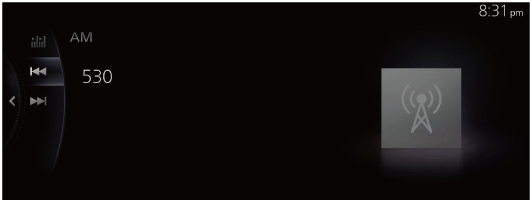
Rotate the to select the icon you want to operate.
|
Menu |
Explanation |
|---|---|
 |
If you select the icon, the next available station is tuned-in automatically. Receivable stations are tuned-in in ascending order every 5 seconds. Once a desired station has been found, select the icon again to turn the feature off. |
 |
Automatically seeks the next available radio station. Radio frequencies are changed one step at a time until a receivable station is found. If the icon is selected again while the tuner is seeking the next available radio station, the seek will stop at the current frequency. If the icon is selected and held, the tuner will continue to seek until the commander knob is released. |
 |
|
HD Radio (Some Models)
Listening to HD Radio™ Technology
When tuned to a radio station with an available HD Radio signal, the  icon will illuminate and the analog broadcast will automatically switch over to the HD Radio broadcast.
If you wish to avoid the HD Radio broadcast, or if HD Radio broadcasts are unavailable in your area, you can uncheck the “HD Radio Tuner” option in the “AM Settings” menu to turn the HD Radio tuner off.
