Favorites
Registering to Favorites
Type A
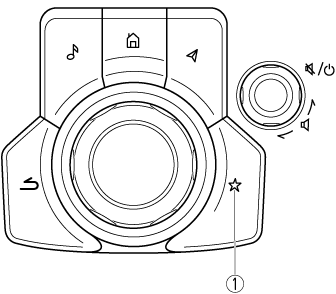
-
Favorites button
Type B
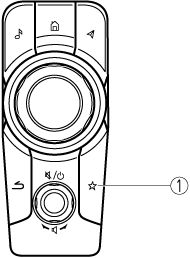
-
Favorites button
The Favorites button provides quick access to contents such as radio stations, contacts, navigation destinations, and other items that are registered to your Favorites.
You can use the following methods to add a new Favorite.
-
Press and hold the
 button on the commander switch while a desired contact, radio station, or a navigation destination is selected.
Selecting contents from Favorites
-
Press the
on the commander switch to display the Favorites list.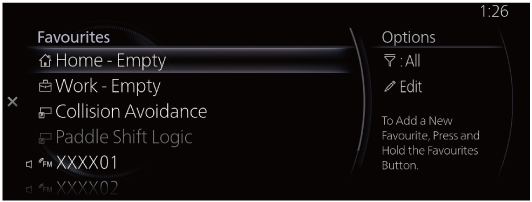
-
Select the desired item you want to play/display from the list to play/display.
Options menu
|
Options |
Explanation |
|---|---|
|
|
The category name of the filter currently selected is displayed. Select to change the category displayed in the Favorites list. |
|
Edit |
Select to edit the Favorites list. |
 [Currently selected category]
-
(Only vehicles with navigation system)
You can register your home and workplace by selecting “Home” and “Work”. For details, refer to the Navigation System Owner's Manual.
-
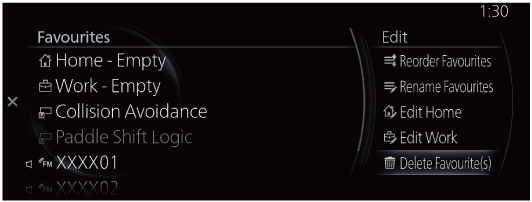
You can quickly access each setting screen by selecting “Collision Avoidance” and “Paddle Shift Logic” (Only some vehicle models).


Editing Favorites list
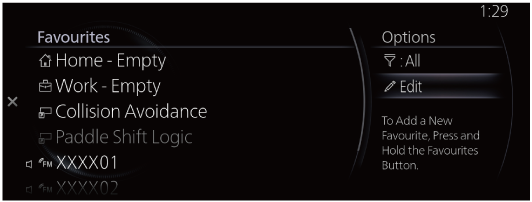
You can change the names and their display order in your favorites list, and delete contents registered to it.
|
Edit |
Explanation |
|---|---|
|
Reorder Favorites |
The Favorites list order can be changed. |
|
Rename Favorites |
Names in the Favorites list can be changed. |
|
Edit Home |
(Only vehicles with navigation system) You can register your home. For details, refer to the Navigation System Owner's Manual. |
|
Edit Work |
(Only vehicles with navigation system) You can register your workplace. For details, refer to the Navigation System Owner's Manual. |
|
Delete Favorite(s) |
Registered Favorites can be individually selected for deletion. |
Changing the Favorites list order
-
Select “Edit” from the Options menu.
-
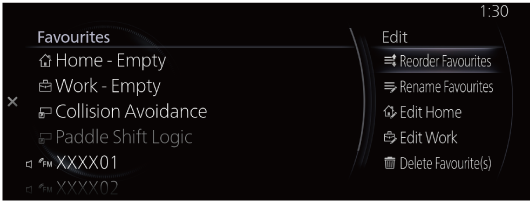
Select “Reorder Favorites” from the Edit menu.
-
Select the item in which you want to change the display order. Rotate the
 to move the item and press the to enter it.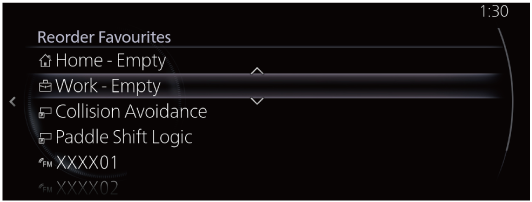
Changing a displayed name in the Favorites list
-
Select “Edit” from the Options menu.
-
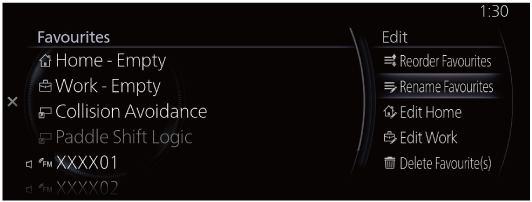
Select “Rename Favorites” from the Edit menu.
-
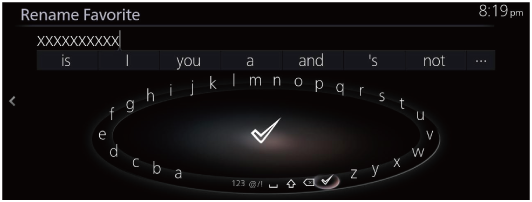
Select the item in which you want to change a displayed name, and change the name using the keyboard display.
Deleting contents from the Favorites list
-
Select “Edit” from the Options menu.
-
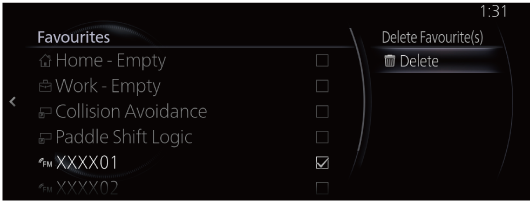
Select “Delete Favorite(s)” from the Edit menu.
-
Place a check in the box next to the item you want to delete and select “Delete” to delete the item. You can delete multiple items.