Android Auto™ (Some Models)
How to use the Android Auto™ mode
Insert an Android™ Smartphone-genuine connector cord into the USB port indicated by the  mark to connect the Smartphone.
Refer to USB (Search).
-
When an Android™ Smartphone connected to Bluetooth® is connected to the vehicle's USB port, Bluetooth® is used by Android Auto™ and the system switches to Android Auto™ mode.
-
If the Android™ Smartphone is connected to a USB port with no
mark indicated, the system operates in USB mode.


Display of Android Auto™ Mode Screen
Use any of the following methods to display the Android Auto™ mode screen in the center display.
-
Select
 on the home screen, and select
  from the Applications screen.
 -
Select
 on the home screen.
 -
Press and hold
 on the commander switch.
Android Auto™ mode home screen
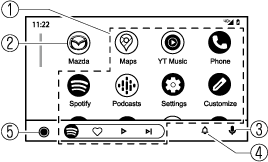
The media displayed on the Android Auto™ home screen may differ depending on the use conditions and version of the connected Android™ Smartphone.
|
No. |
Icon |
Explanation |
|---|---|---|
|
|
- |
Displays the information for each application. The displayed contents differ depending on the application that has been activated and its status. |
|
|
 |
Returns to the Mazda Connect screen. |
|
|
 |
Activates the voice recognition for Android Auto™. |
|
|
 |
Displays notifications from the Android™ Smartphone. |
|
|
 |
Displays the Android Auto™ home screen. |


Convenient ways to use Android Auto™ mode
|
Item |
Operation method |
|---|---|
|
Operation using voice recognition*1 |
Any of the following methods can be used to start the voice recognition mode and operate Android Auto™ by voice.
|
|
To display the NowPlaying screen |
When music is playing in Android Auto™ and a screen other than the NowPlaying screen is being displayed, press |
|
To display the MAP screen |
When using map route guidance in Android Auto™ and a screen other than the MAP screen is being displayed, press |
|
To return to the Mazda Connect screen |
Press and hold |
 icon on the Android Auto™ screen.
 on the commander switch to display the NowPlaying screen.
 on the commander switch to display the Android Auto™ MAP screen.
-
The voice recognition function of Mazda Connect cannot be used while Android Auto™ is connected.
To end Android Auto™
To end the Android Auto™ mode, disconnect the Android™-genuine connector cord from the USB port or disconnect the Android™ Smartphone from the connector cord.
(If Android Auto™ cannot be connected)
When the message, “Mobile Device Error”, is displayed and Android Auto™ cannot be connected
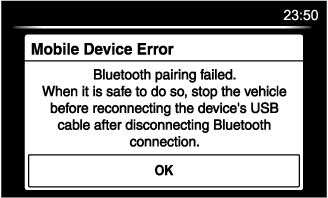
Make sure that the Android™ Smartphone in question is compatible with Android Auto™.
Before trying to reconnect your Android™ Smartphone to the connector cord, do the Bluetooth® device pairing again.
(If Android Auto™ cannot launch)
Some Android™ Smartphones are connected in charging only mode when connected with the connector cord.
In this case, it may not be possible to use Android Auto™, therefore, change the USB setting for the Smartphone from charging only mode to transmission enabled mode.
Additionally, if Apple CarPlay™ is being used, disconnect Apple CarPlay™ because Android Auto™ may also be unusable.
If Android Auto™ still cannot launch, switch off the Android Auto™ connection setting once, and then switch it back on while connected in transmission enabled mode.
The Android Auto™ connection setting can be changed in the  tab on the Settings screen (Search).