USB
How to connect USB port
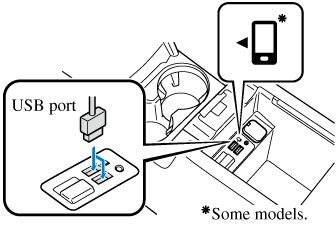
Connecting a device
-
Open the console lid.
-
If there is a cover on the USB port, remove the cover.
-
Connect the connector on the device to the USB port.
Do not allow the connection plug cord to get tangled with the parking brake (without electric parking brake (EPB)) or the shift lever (manual transaxle)/selector lever (automatic transaxle):
Allowing the plug cord to become tangled with the parking brake (without electric parking brake (EPB)) or the shift lever (manual transaxle)/selector lever (automatic transaxle) is dangerous as it could interfere with driving, resulting in an accident.


Do not place objects or apply force to the USB port with the plug connected.
-
Insert the plug into the USB port securely.
-
Insert or pull out the plug with the plug perpendicular to the USB port hole.
-
Insert or remove the plug by holding its base.
-
Use the USB terminal indicated by the
 mark or the 1 mark when using Apple CarPlay™ (Some Models) and Android Auto™ (Some Models).
How to use USB mode
|
Type |
Playable data |
|---|---|
|
USB mode |
MP3/WMA/AAC/OGG (Some Models)/M4A/WAV file |
This unit does not support a USB 3.0 device. In addition, other devices may not be supported depending on the model or OS version.
The recommended capacity of the USB memory is 32 GB or less.
USB devices formatted to FAT32 are supported (USB devices formatted to other formats such as NTFS are not supported).
Playback
-
Select the
 icon on the home screen to display the Entertainment screen.
 -
Select
 or
or  to switch the USB mode. The following icons are displayed in the lower part of the center display.
|
Icon |
Function |
|---|---|
 |
Displays the Entertainment menu. Use to switch to a different audio source. |
 |
Category list is displayed. |
 |
Current track list is displayed. Select a desired track to play it. |
 |
Plays the current track repeatedly. Select it again to play the tracks in the current track list repeatedly. When selected again, the function is canceled. |
 |
Tracks in the current track list are played randomly. Select it again to cancel. |
 (Some Models) |
Starts playing a track similar to the current track using Gracenote®'s More Like This™. Select the desired song from the category list to cancel More Like This™. |
 |
If selected within a few seconds from the beginning of a song which has started to play, the previous song is selected. If more than a few seconds have elapsed, the song currently being played is replayed from the beginning. Long-press to fast reverse. It stops when you remove your hand from the icon or the commander knob. |
 |
Track is played. When selected again, playback is temporarily stopped. |
 |
Advances to the beginning of the next song. Long-press to fast forward. |
 |
Displays sound settings to adjust audio quality level. Refer to Other Equipment/Functions (Search). |
-
If a file name in the USB memory is too long, it could cause operation problems such as not being able to playback the song.
(Recommended: Within 80 characters)
-
The album art may not display depending on the album art size.
-
To move to the desired location on the track, move the slider indicating the playback time.
-
The appearance of the repeat and shuffle icons changes depending on the type of operation in which the function is used.
Category list
Select the  icon to display the following category list.
Select a desired category and item.
|
Category |
Function |
|---|---|
|
Playlist*1 |
Displays playlists on the device. |
|
Artist |
Displays the artist name list. All the tracks or tracks for each album of the selected artist can be played. |
|
Album |
Displays the album name list. |
|
Song |
All the tracks in the device are displayed. |
|
Genre |
Displays the genre list. All the tracks or tracks per album or artist in the selected genre can be played. |
|
Audiobook*2 |
Displays the audiobook list. Chapters can be selected and played. |
|
Podcast*2 |
Displays the podcast list. Episode can be selected and played. |
|
Apple Music Radio*2 |
Displays Apple Music Radio stations. A station can be selected and played. |
|
Folder*3 |
Displays the folder/file list. |
-
Playlist folders of Apple devices are not supported.
-
Apple device only
-
USB-Sticks and USB-Android™ device only
Example of use (to play all tracks in USB device)
(Method 1)
-
Select
to display the category list. -
Select
 .
.All the tracks in the USB device are displayed.
-
Select a desired track.
The selected track is played. All the tracks in the USB device can be played by continuing playback.
(Method 2)*1
-
Select
to display the category list. -
Select
 .
.All the folders in the USB device are displayed.
-
Select
 .
.All the tracks in the USB device are displayed.
-
Select a desired track.
The selected track is played. All the tracks in the USB device can be played by continuing playback.
-
Can be operated using an Android™ device or USB flash memory.