Apple CarPlay™
Apple CarPlay™ allows you to use your iPhone® with Mazda Connect to make calls, send and receive messages, listen to music, and search for destinations using the maps. In addition, voice recognition using Siri® is available.
Do not allow the cord connected to the USB port to get tangled in the selector lever.
If the cord gets tangled, it could be a distraction to your driving and result in an unexpected accident.


Do not place items or apply force to the USB port or console box lid with the plug connected.
Depending on the portable audio device to be connected, noise may occur when using the device with it connected to the accessory power socket equipped on the vehicle (if noise occurs, do not use the accessory power socket).
Do not leave your iPhone® in the cabin. Otherwise, the cabin temperature will increase to a high temperature under direct sunlight which could cause damage.
Before use, carefully read the user instructions for the iPhone®.
Do not use Mazda Connect for a long time with the engine stopped. Otherwise, the lead-acid battery power could be depleted.
Insert the plug into the USB port securely.
Connecting an iPhone
(USB connection)
Insert an Apple-genuine connector cord into the USB port and connect the iPhone®. Insert or pull out the plug with the plug perpendicular to the USB port hole.
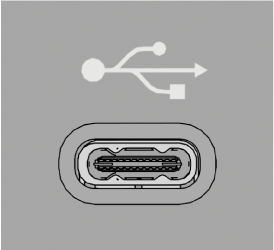
The location of the USB port differs depending on the vehicle model.
When an iPhone® connected to Bluetooth® is connected to the vehicle's USB port, the system switches to Apple CarPlay™.
Applications that you were using when connected to Bluetooth® can continue to be used. However, the functions that can be used with a Bluetooth® connection and the functions which can be used by Apple CarPlay™ differ depending on the application.
If the iPhone is set to “Never Enable” on the Mazda Connect “Apple CarPlay Activation Options” screen, Apple CarPlay™ will not activate even if it is connected to the vehicle's USB port.
Set the iPhone that you want to use with Apple CarPlay™ to “Always Enable” or “Always Ask”.
Refer to Settings (Search).
(Wireless connection)
Wireless access to Apple CarPlay™ is available by connecting your iPhone® with Mazda Connect using Bluetooth® and Wi-Fi™.
There is no difference in the functions of Apple CarPlay™ when using the wireless connection and the USB connection.
If the iPhone® is connected to the USB port while using the wireless connection, the iPhone® battery is charged.
Connecting Apple CarPlay™ for the first time
When connecting Apple CarPlay™ for the first time, a confirmation screen concerning Apple CarPlay™ activation is displayed.
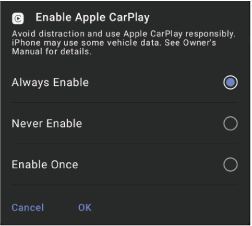
Always Enable: Enables each time without a confirmation.
Never Enable: Does not enable the currently connected device hereafter.
Enable Once: Enables the device only this time.
When “Enable Once” is selected, the confirmation screen is displayed again the next time the engine or hybrid system is started.
However, if the interval between stopping and starting the engine is short, the confirmation screen may not be displayed.
Displaying the Apple CarPlay™ screen
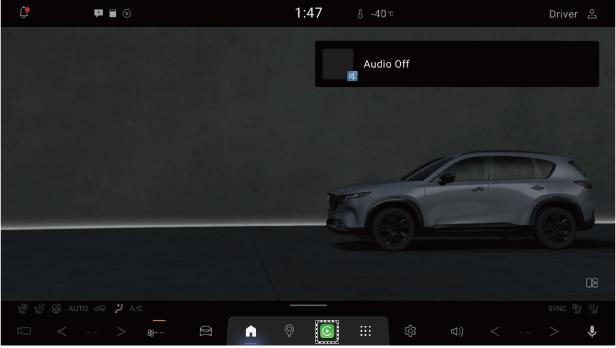
Vehicles with Google built-in
Vehicles without Google built-in
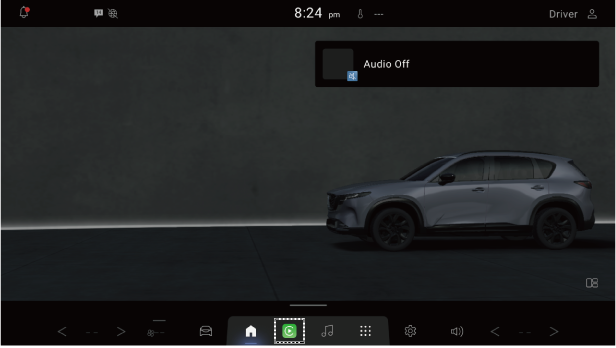
When Apple CarPlay™ is connected,  is displayed on the navigation bar.
Tap to display the Apple CarPlay™ screen.
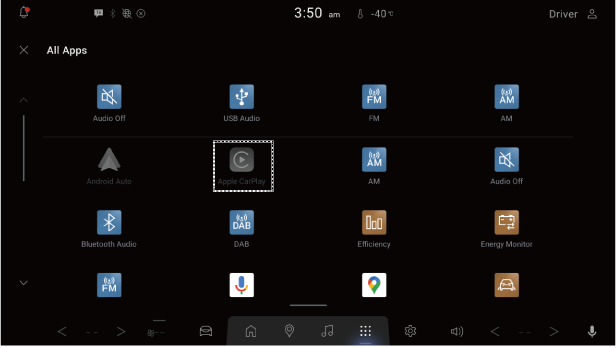
If the iPhone® is not connected to Apple CarPlay™, tap  in All Apps to display the “Starting Apple CarPlay” screen.
Apple CarPlay™ home screen
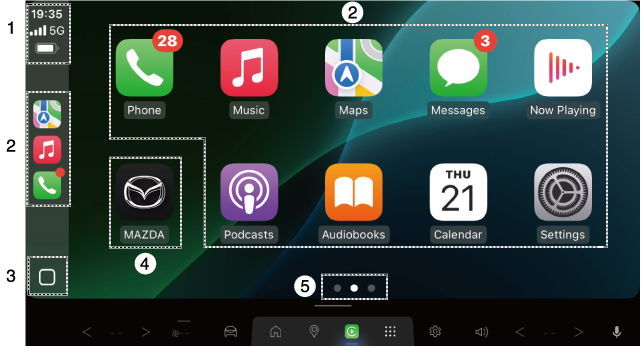
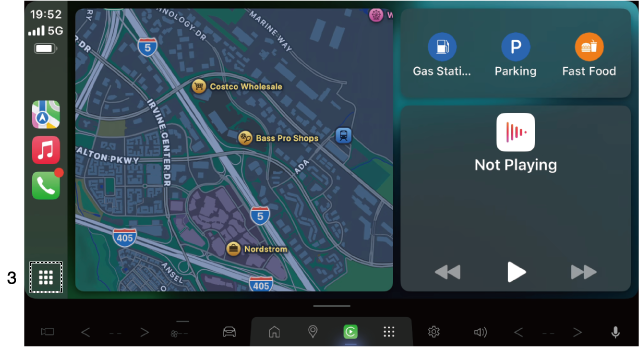
|
No. |
Explanation |
|---|---|
|
1 |
The status of the iPhone connected to Apple CarPlay™ is displayed. |
|
2 |
Tap the icon to activate each application. |
|
3 |
Tap |
|
4 |
Tap |
|
5 |
Indicates the screen position currently being displayed. |
 or
or  to switch screens.
 to display the screen that was displayed before Apple CarPlay™ was activated.
Convenient ways to use Apple CarPlay™
|
Item |
Operation method |
|---|---|
|
To activate the voice recognition function (Siri®) |
Speak the activation command “Hey Siri”.
(Vehicles with Google built-in) Press and hold (Vehicles without Google built-in) Press |
|
To display the NowPlaying screen |
Tap the entertainment widget on the Mazda Connect home screen.*1
(Vehicles without Google built-in) While playing music with Apple CarPlay™, tap |
|
To display the MAP screen |
Tap the map widget on the Mazda Connect home screen.*2
(Vehicles with Google built-in) Tap |
|
To display the Mazda Connect screen |
Tap |
 on the steering switch to activate Siri®.*1
 on the navigation bar to display the Apple CarPlay™ playback screen.
 on the navigation bar while route guidance is being provided using Apple CarPlay™ to display the Apple CarPlay™ map screen.
 on the navigation bar to display the Mazda Connect home screen.
-
During music playback with Apple CarPlay™
-
During route guidance with Apple CarPlay™
Ending Apple CarPlay™
(USB connection)
To exit Apple CarPlay™, unplug the connection cord from the USB port or unplug the iPhone® from the connection cord.
(Wireless connection)
To exit Apple CarPlay™, go to the “Device Settings” screen on Mazda Connect where the iPhone® currently using Apple CarPlay™ is displayed, and check “Disconnect”.
When Apple CarPlay™ is ended, the screen displayed before Apple CarPlay™ was activated is displayed. In addition, the Bluetooth® device connected prior to the Apple CarPlay™ activation is reconnected.