How to Use the Rear View Monitor
Displaying the rear view monitor
Shift the selector lever to the R position.
Images are displayed on the center display.
(Vehicles with Trailer Hitch View)
The Trailer Hitch View is operable on vehicles equipped with a Mazda genuine trailer hitch.
Trailer Hitch View is a function that assumes the use of a Mazda genuine trailer hitch.
Trailer Hitch View can be used correctly only if a Mazda genuine trailer hitch is equipped.


Switching the image (Vehicles with Trailer Hitch View)
-
Turn the commander knob and move the cursor to the desired image.
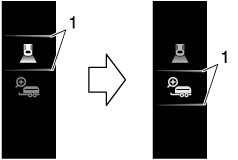
-
Cursor
-
-
Press the commander knob to select the image to display.
Viewing the screen
-
The images displayed on the center display are reversed left and right.
-
(Vehicles with Trailer Hitch View)
-
The Trailer Hitch Guideline can be turned off.
Refer to the Settings section in the Mazda Connect Owner's Manual.
-
The Trailer Hitch Guideline may appear off-center in the video image.
-
When any of the following conditions is met, the hitch ball or the trailer coupling may appear deviated from the Trailer Hitch Guideline.
-
A vehicle condition has changed (such as weight, tire pressure).
-
The liftgate is not fully closed.
-
The road surface is not flat.
-
There is a large difference in height between the hitch ball and the trailer coupling.
-
The hitch ball position deviates from normal conditions.
-
-
-
Screen brightness and contrast can be adjusted.
Refer to the Settings section in the Mazda Connect Owner's Manual.
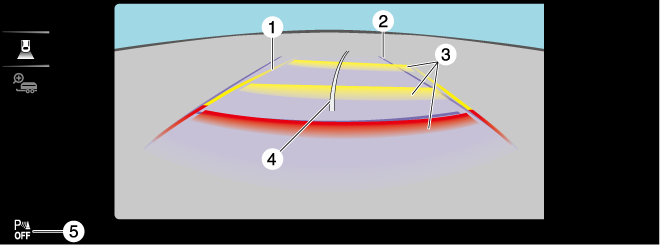
Type A
When the parking sensor is ON
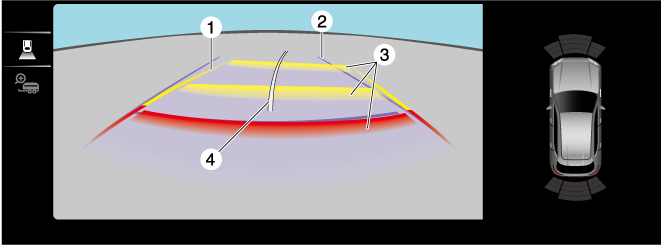
When the parking sensor is OFF
|
Indication |
Content |
|
|---|---|---|
|
1 |
Projected vehicle path lines (yellow) |
Indicates the approximate projected path of the vehicle. The projected vehicle path lines move in conjunction with the steering wheel operation. |
|
2 |
Vehicle width guide lines (blue) |
Indicates the approximate width of the vehicle. Does not display when the steering wheel is operated in a straight-ahead position. |
|
3 |
Projected vehicle path distance guide lines (red/yellow) |
These guide lines indicate the approximate distance to a point measured from the rear of the vehicle (from the end of the bumper).
|
|
4 |
Trailer Hitch Guideline |
(Vehicles with Trailer Hitch View) Indicates the approximate position of the hitch ball. Moves in conjunction with the steering wheel operation. |
|
5 |
Parking sensor status icon |
Indicates that the parking sensor has a problem or it is switched off. |
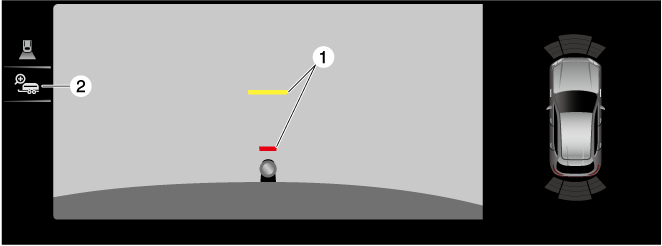
Trailer Hitch Zoom View (When the parking sensor is ON)
|
Indication |
Content |
|
|---|---|---|
|
1 |
Projected vehicle path distance guide lines (red/yellow) |
These guide lines indicate the approximate distance to a point measured from the rear of the vehicle (from the end of the bumper).
Moves in conjunction with the steering wheel operation. |
|
2 |
View status icon |
Indicates which image is selected. |
Trailer Hitch Zoom View (When the parking sensor is OFF)
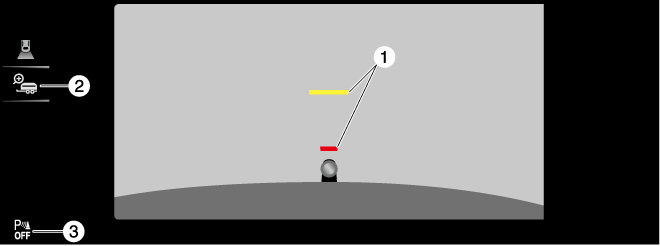
|
Indication |
Content |
|
|---|---|---|
|
1 |
Projected vehicle path distance guide lines (red/yellow) |
These guide lines indicate the approximate distance to a point measured from the rear of the vehicle (from the end of the bumper).
Moves in conjunction with the steering wheel operation. |
|
2 |
View status icon |
Indicates which image is selected. |
|
3 |
Parking sensor status icon |
Indicates that the parking sensor has a problem or it is switched off. |
Type B
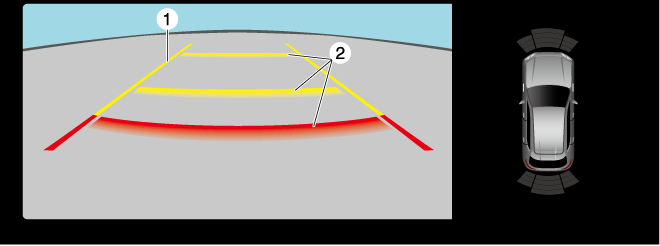
When the parking sensor is ON
When the parking sensor is OFF
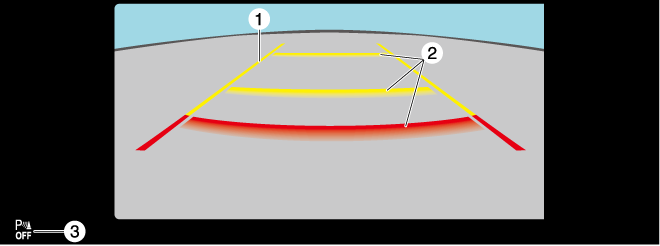
|
Indication |
Content |
|
|---|---|---|
|
1 |
Vehicle width guide lines (yellow) |
Indicates the approximate width of the vehicle. |
|
2 |
Projected vehicle path distance guide lines (red/yellow) |
These guide lines indicate the approximate distance to a point measured from the rear of the vehicle (from the end of the bumper).
|
|
3 |
Parking sensor status icon |
Indicates that the parking sensor has a problem or it is switched off. |
System problem indication
In the following cases, there might be a problem with the system. Have the vehicle inspected by an Authorized Mazda Dealer.
-
"No camera signal." is displayed on the center display.
-
The display on the center display does not switch to the camera image even if the selector lever is shifted to the R position.
-
A portion of the display on the center display is black.