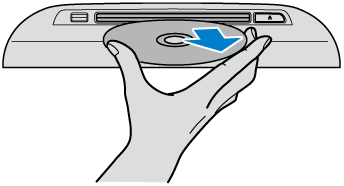
DVD (Some Models)
Inserting a DVD into the unit
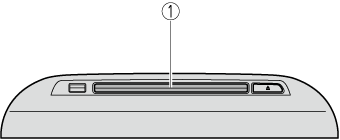
-
CD/DVD slot
The shape of the CD/DVD player differs depending on the vehicle model.
-
Switch the ignition or power switch to ACC or ON.
-
Insert the DVD into the slot, label side up. The auto-loading mechanism will set the disc and the DVD playback screen is displayed.
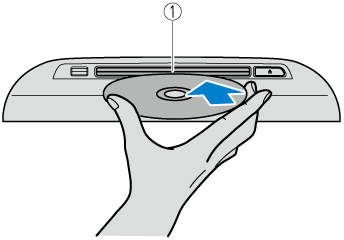
-
CD/DVD slot
-
-
Use only 12 cm DVDs. This device cannot playback 8 cm DVDs even if an adapter is used. If an 8 cm DVD adapter is used, the device might be damaged.
-
There will be a short lapse before play begins while the player reads the digital signals on the DVD.
-
For details on playing music recorded on DVD-R/DVD+R/DVD-RW/DVD+RW, refer to the CD item.
Refer to CD (Search).


Changing to the DVD playback screen
-
Select “Entertainment” on the home screen.
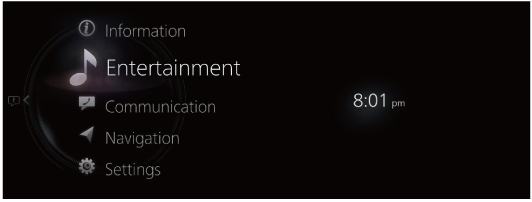
-
Select “DVD”.
-
If there is currently playing content, select “Entertainment” to have the contents displayed on the playback screen.
While on the playback screen, press the
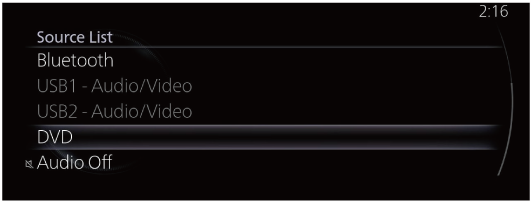
 on the commander switch to display the Source List screen.
 -
If a disc is not inserted, “Disc” is displayed, however, it cannot be selected.
-
-
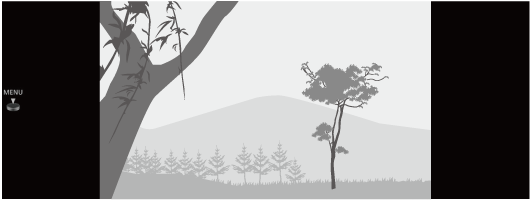
The playback screen is displayed.
-
For safety reasons, images are not displayed and only the audio is played while driving, and some functions are limited.
-
If the mode is switched to DVD mode once the DVD playback has stopped, the playback restarts without displaying the DVD menu screen.
-
If you switch to another type of audio while a DVD is playing, the DVD playback stops temporarily.
Rotate the  to display the Chapter.
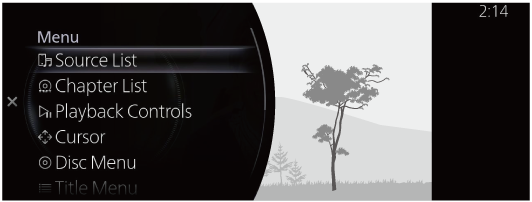
When the  is displayed, you can display the menu by pressing the .
DVD menu
|
Menu |
Explanation |
|---|---|
|
Source List |
Displays the Source List screen. The audio source can be switched. |
|
Chapter List |
Displays the chapter list. Select the video you want to play from the chapter list. |
|
Playback Controls |
Displays the control screen (icon) on the playback screen. For the operation method of each icon, refer to How to Use the Tuner Controls (icon). |
|
Cursor (Some Models) |
(DVD Video) Moves on the DVD menu screen for item selection. Move to the desired position using the up/down, left/right arrows and select |
|
Disc Menu (Some Models) |
(DVD Video) Displays the top menu of the DVD. |
|
Title Menu (Some Models) |
(DVD Video) Displays the title menu of the DVD. |
|
Title Number |
Specifies the title number of the DVD you want to play and plays it. Input the title number of the DVD and select |
|
DVD Settings |
Makes settings for the DVD. For details, refer to DVD Settings. |
|
Audio Settings |
Adjusts the sound quality. |
 .
.How to Use the Tuner Controls (icon)
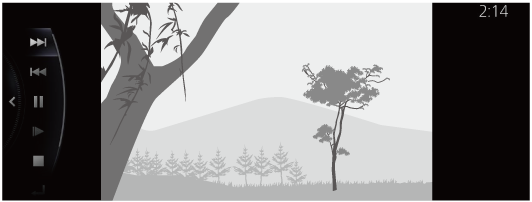
Rotate the to select the icon you want to operate.
|
Icon |
Explanation |
|---|---|
 |
Advances to the beginning of the next video. Press and hold to fast forward. Release it to stop. |
 |
Returns to the beginning of the previous video. Press and hold to fast reverse. Release it to stop. |
 |
(When selected during pause) Plays the video. (When selected during slow motion playback) Cancels slow motion playback. |
 |
(When selected during playback) Playback is paused. |
 |
Plays the video in slow motion playback. |
 |
Stops the video. |
 |
Returns to the title menu. |
DVD Settings
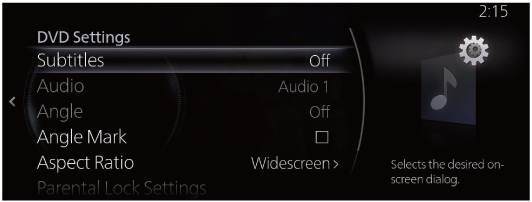
Rotate the to select the icon you want to operate.
|
Menu |
Explanation |
|---|---|
|
Subtitles |
Changes the subtitle settings. You can select the type of subtitles or turn them off. |
|
Audio |
Changes the audio settings. You can select the type of audio. |
|
Duplex Audio (Some Models) |
(DVD VR) Switches between Primary Audio/Supplementary Audio. |
|
Angle (Some Models) |
(DVD Video) Changes the camera angle. |
|
Angle Mark (Some Models) |
(DVD Video) Switches the multi-angle mark display between enable/disable. |
|
Aspect Ratio |
Changes the screen size. You can select from “Widescreen”/“Letterbox”/“Pan and Scan”. |
|
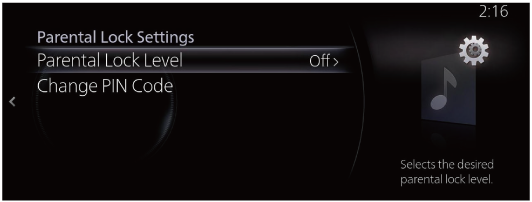
Parental Lock Settings (Some Models) |
(DVD Video) Displays the Parental Lock Settings screen. You can change the parental lock level, and set, change, and reset the PIN code. For the operation method, refer to Parental Lock. |
Parental lock
Some DVDs have a parental lock level.
When the DVD parental lock level exceeds the setting level set on this unit, the playback is disabled. You can change the parental lock level, and set, change, and reset the PIN code.
To use the parental lock function, you need to set a PIN code.
Setting the PIN code (4-digit)
-
Select “Change PIN Code”.
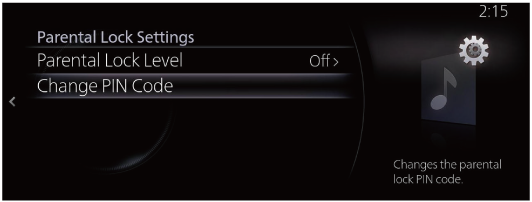
-
Input the new PIN code.
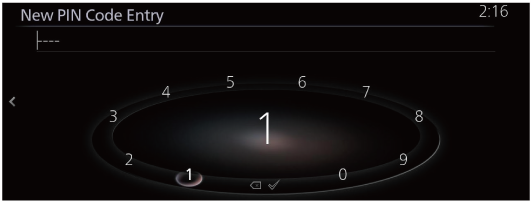
-
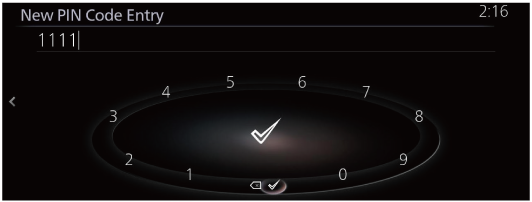
Select
 .
.
Changing the parental lock level
-
Select “Parental Lock Level”.
-
Input the PIN code.
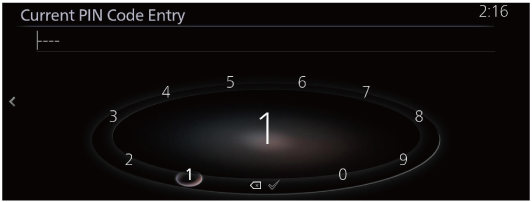
-
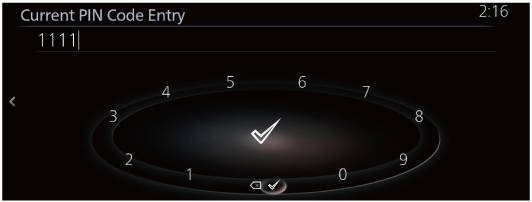
Select
.
-
Select your desired restriction level from “Off”, or from “8 (Restriction level: Low)” to “1 (Restriction level: High)”.
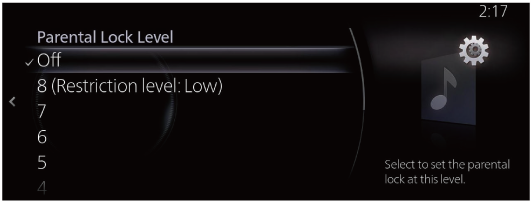
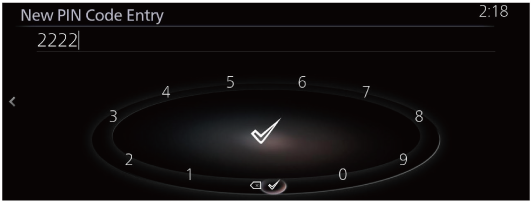
Changing the PIN code
-
Select “Change PIN Code”.
-
Input the current PIN code.
-
Select
. -
Input the new PIN code.
-
Select
.
Resetting the PIN code
If you forgot the programmed PIN code, you can reset it using the following procedure.
-
Select “Change PIN Code”.
-
Select
 10 times while nothing is input.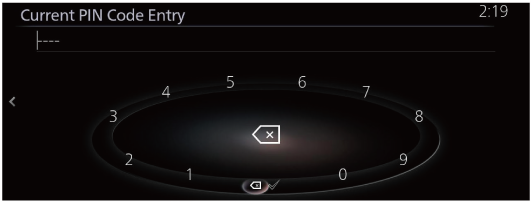
Playing a locked DVD
If you want to play a DVD which has been locked by the parental lock function, it can be unlocked by inputting the PIN code.
-
If you try to play a locked DVD, the PIN code input screen is displayed.
-
Input the current PIN code.
-
Select
.
Ejecting a DVD
-
Press the
 button.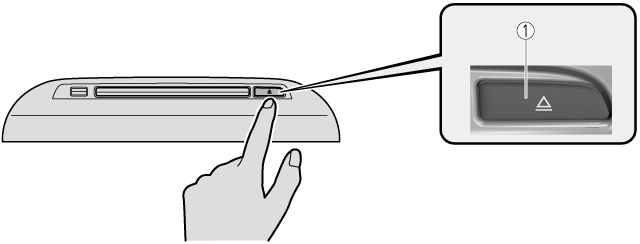
-
CD/DVD eject button
-
-
Remove the DVD by grasping its edge.