

USB1 Video/USB2 Video (Some Models)
You can play videos by connecting a commercially-available USB memory to the vehicle's USB port.
Do not allow the cord connected to the USB port to get tangled in the shift lever/selector lever:
If the cord gets tangled, it could be a distraction to your driving and result in an unexpected accident.


-
Do not place items or apply force to the USB port or console box lid with the plug connected.
-
Depending on the mobile device to be connected, noise may occur when using the device with it connected to the accessory power socket equipped on the vehicle (if noise occurs, do not use the accessory power socket).
-
Do not connect an SD card reader or USB hub to the USB port. Playback of the music written to the card is not supported. The navigation system may also become unusable. In addition, do not connect a mouse or keyboard.
-
Do not leave a USB audio device in the cabin. Otherwise, the cabin temperature will increase to a high temperature under direct sunlight which could cause damage.
-
The SD card slot is for the navigation system. To use the navigation system, an SD card (Mazda genuine) for the navigation system needs to be inserted. Do not insert an SD card with music files saved on it.
-
This function may be unusable depending on the mobile device to be connected.
-
Before use, read the manufacturer's instruction manual for a commercially-available mobile device.
-
Do not play video for a long time with the engine stopped. Otherwise, the battery power could be depleted.
-
Noise may occur depending on the mobile device to be connected.
-
Insert the plug into the USB port securely.
-
Devices can be used which comply with the USB 2.0/1.1 standard. Even with USB 3.0 standard products, if the device is compatible with USB 2.0, it can be used as a USB 2.0 device.
Connecting devices
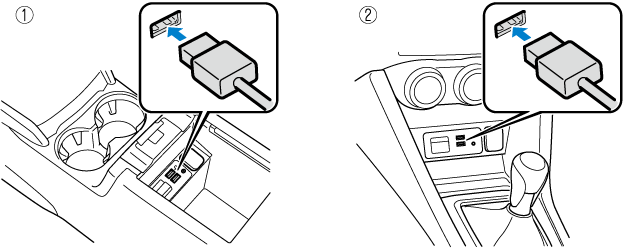
Connect the USB audio device to the vehicle using the USB cable. Insert or pull out the plug with the plug perpendicular to the USB port opening.
-
Located on center console
-
Located in front console area
The location of the USB port differs depending on the vehicle model.
Playing video
-
When using USB memory, it may require some time before playback begins depending on the capacity and number of stored files.
-
Video playback is compatible with USB memory and USB audio devices other than Apple® products.
-
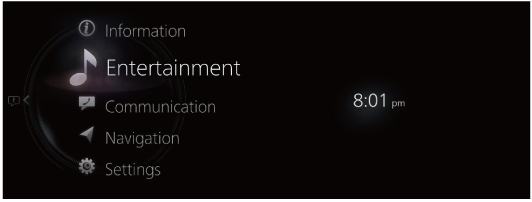
Select “Entertainment” on the home screen.
-
Select “USB1 Video - [11:device name]” or “USB2 Video - [11:device name]”.
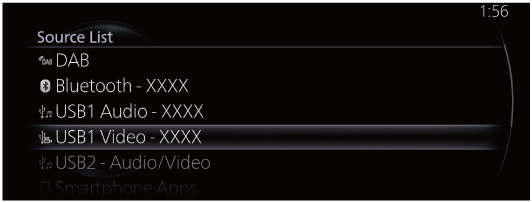
If there is currently playing content, select “Entertainment” to have the contents displayed on the playback screen.
While on the playback screen, press the
 on the commander switch to display the Source List screen.
 -
The playback screen is displayed.
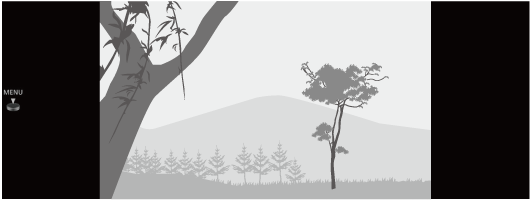
For safety reasons, images are not displayed and only the audio is played while driving, and some functions are limited.
Rotate the  to display the Track List.
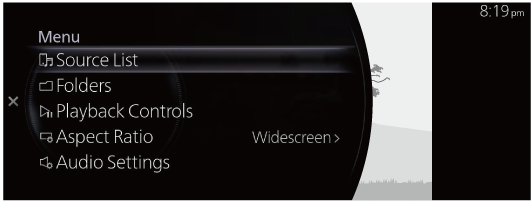
When the  is displayed, you can display the menu by pressing the .
USB video menu
|
Menu |
Explanation |
|---|---|
|
Source List |
Displays the Source List screen. You can switch the audio source. |
|
Folders |
Displays the Folders screen. Displays the folder list where you can select the video you want to play from the folder. For the selection method, refer to Selecting videos from a folder. If there is no folder, the folder selection screen is omitted and it moves to the file selection screen. |
|
Playback Controls |
Displays the control screen (icon) on the playback screen. For the operation method for each icon, refer to How to Use the Tuner Controls (icon). |
|
Aspect Ratio |
The screen size can be switched to “Widescreen”/“Letterbox”/“Pan and Scan”. |
|
Audio Settings |
Adjusts the sound quality. |
Selecting videos from a folder
-
Select the folder from the Folders screen.
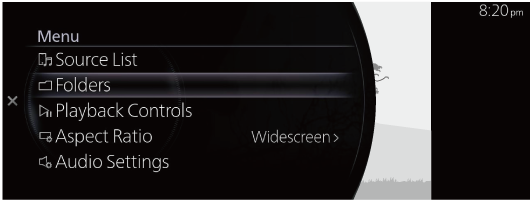
-
Select the folder to display the file list in the folder.
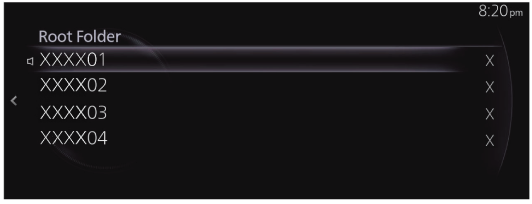
-
Select the video you want to play to begin playback.
How to Use the Tuner Controls (icon)
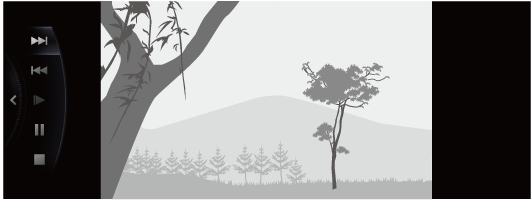
Rotate the to select the icon you want to operate.
|
Icon |
Explanation |
|---|---|
 |
Advances to the beginning of the next video. Press and hold to fast forward. Release it to stop. |
 |
Returns to the beginning of the previous video. Press and hold to fast reverse. Release it to stop. |
 |
Plays the video in slow motion playback. |
 |
(When selected during pause) Plays the video. (When selected during slow motion playback) Cancels slow motion playback. |
 |
(When selected during playback) Playback is paused. |
 |
Stops the video. |
