

Commander Switch Operation
The commander switch can be used to switch to each function and to operate each function.
Set the palm of your hand on the commander knob so that your fingers can touch each of the switches.
You can switch the screens without having to look down at your hand.


Commander Switch
Type A
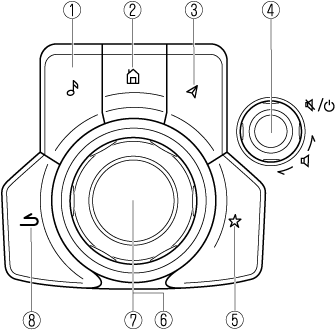
Type B
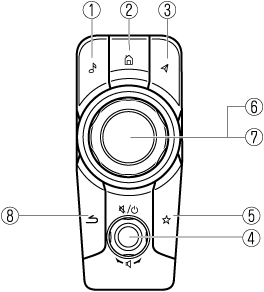
The shape of the switches varies depending on the vehicle specifications.
|
No. |
Item |
Explanation |
|---|---|---|
|
1 |
 |
Entertainment button: The audio source screen last used is displayed.
(During Apple CarPlay™ or Android Auto™ music playback) Displays the Apple CarPlay™ or Android Auto™ now playing screen. |
|
2 |
 |
Home button: Displays the home screen.
(While Apple CarPlay™ or Android Auto™ is displayed) Displays the Apple CarPlay™ or Android Auto™ home screen.
(While Apple CarPlay™ or Android Auto™ is connected) Press and hold while the Mazda Connect screen is displayed to switch the screen from Mazda Connect to Apple CarPlay™ or Mazda Connect to Android Auto™. In addition, press and hold while the Apple CarPlay™ or Android Auto™ screen is displayed to switch to the Mazda Connect screen. |
|
3 |
 |
Map button: Displays the navigation screen (vehicles with navigation system). In order for the navigation system to function, the SD card for the navigation system is required. If the SD card for the navigation system is not inserted, the compass indicating the direction in which the vehicle is moving is displayed. For the navigation system operation, refer to the navigation system manual.
(During Apple CarPlay™ or Android Auto™ route guidance) Displays the Apple CarPlay™ or Android Auto™ map screen.
With an active Mazda Navigation route, pressing the Map button will repeat the navigation voice guidance. |
|
4 |
 |
Volume knob: Volume adjustment Adjust the volume by turning the volume knob. If you adjust the volume during voice guidance, the volume of the voice guidance will change. If you adjust the volume during a hands-free call, the conversation volume will change. Press the volume knob to mute/pause the audio. Press the knob again to resume.
Power off/on*1 Type A Press and hold to turn off the Mazda Connect power and turn off the screen. Press and hold again to turn on the Mazda Connect power.
If you press the volume knob to mute an audio source which can be paused, such as Apple CarPlay™, USB audio, or Bluetooth® audio, while it is playing, the song playback pauses. Press the volume knob again to cancel the mute and the pause at the same time. Type B Press and hold to turn off the Mazda Connect power and turn off the screen. Press again to turn on the Mazda Connect power.
|
|
5 |
 |
Favorites button: Displays the favorites screen. Press and hold to register AM/FM/SiriusXM® (Some Models) stations, contacts, navigation destinations, or any highlighted menu items to create easily accessible shortcuts. |
|
6 |
 |
Commander knob (selection): Rotate or slide the commander knob to highlight/select the on-screen functions you want to use. |
|
7 |
 |
Commander knob (select): Depress the commander knob to select the desired on-screen function you want to use. |
|
8 |
 |
Back button: Returns to previous screen. |
-
The power off/on method differs depending on the vehicle model and the vehicle's period of manufacture.
