

Drive Efficiency Monitor (Some Models)
The fuel economy/electrical power consumption rate history, system operation status, and settings are switched by selecting each item on the center display.
-
Select “Information” on the home screen.
-
Select “Drive Efficiency Monitor”.
-
Press the commander switch to display the menu.
-
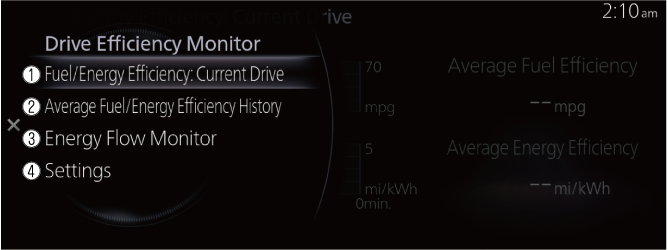
Select the item in the menu. Each item operates as follows:
-
Fuel/Energy Efficiency: Current Drive
Displays the information regarding the current fuel economy/electrical power consumption rate.
-
Average Fuel/Energy Efficiency History
Displays the information regarding the past fuel economy/electrical power consumption rate.
-
Energy Flow Monitor
Displays the system operation status.
-
Settings
Displays the settings for the Drive Efficiency Monitor.
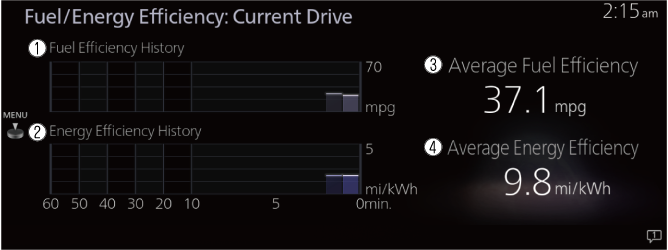
Fuel/Energy Efficiency: Current Drive
Displays the information regarding the current fuel economy/electrical power consumption rate.
-
Fuel Efficiency History
Displays the fuel efficiency for the past 60 minutes.
-
Displays the fuel efficiency every minute for the past 1 to 10 minutes.
-
Displays the fuel efficiency every 10 minutes for the past 10 to 60 minutes.
-
-
Energy Efficiency History
Displays the energy efficiency for the past 60 minutes.
-
Displays the energy efficiency every minute for the past 1 to 10 minutes.
-
Displays the energy efficiency every 10 minutes for the past 10 to 60 minutes.
-
-
Average Fuel Efficiency
Calculates the average fuel efficiency at regular intervals after vehicle travel starts, and displays it.
-
Average Energy Efficiency
Calculates the average energy efficiency at regular intervals after vehicle travel starts, and displays it.
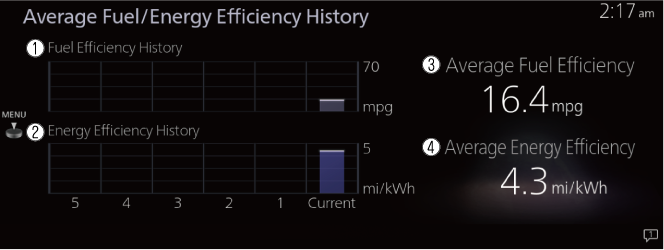
Average Fuel/Energy Efficiency History
Displays the information regarding the past fuel economy/electrical power consumption rate.
-
Fuel Efficiency History
Displays the average fuel efficiency over the past 5 resets and after the current reset.
-
Energy Efficiency History
Displays the average energy efficiency over the past 5 resets and after the current reset.
-
Average Fuel Efficiency
Calculates the average fuel efficiency at regular intervals after vehicle travel starts, and displays it.
-
Average Energy Efficiency
Calculates the average energy efficiency at regular intervals after vehicle travel starts, and displays it.
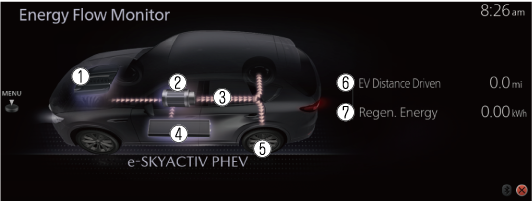
Energy Flow Monitor
Displays the operation status and the power generating status of the hybrid system.
-
Engine
The icon is illuminated while the engine is running.
-
Motor
The icon is illuminated while the motor is operating.
-
Arrows indicating energy flow
Displays the energy flow by the direction of the arrows and movement of the arrows.
If there is no energy flow, the arrows are not displayed.
The red arrows indicate the drive energy for driving the vehicle.
The blue arrows indicate the regenerated kinetic energy and charged electricity.
-
High voltage battery
The remaining amount of power in the high voltage battery is indicated at 6 levels.
-
Tires
The tire indications rotate while driving.
The icon is illuminated during regenerative braking.
-
EV Distance Driven
Displays the distance traveled using the motor only.
-
Regen. Energy
Displays the system power generation amount.
Settings
Displays the setting screen for the fuel economy/electrical power consumption rate.
The following settings can be changed in the settings screen.
-
Fuel economy/electrical power consumption rate history
-
Setting to reset or not reset the linked average fuel economy/electrical power consumption rate indicated in the instrument cluster and the fuel economy/electrical power consumption rate history (current) on the center display when tripmeter (TRIP A) is reset
