Switching to Apple CarPlay™
Connect the iPhone® by inserting the Apple®-genuine connector cord to the USB terminal indicated by the  mark.
mark.
Refer to How to connect USB port/Auxiliary jack (Search).
-
When you switch your iPhone® connection from Bluetooth® to the vehicle's USB terminal, the system switches to Apple CarPlay™. The applications which was being used via Bluetooth® connection can be used continuously. However, the available functions of the applications using Bluetooth® connection and those on Apple CarPlay™ may differ.
-
If the iPhone® is connected to the USB terminal not indicated by the
mark, the system operates in USB mode.


Display of Apple CarPlay™ Screen
Use any of the following methods to display the Apple CarPlay™ screen in the center display.
-
Select
 on the home screen.
 -
Long press
 on the commander switch.
 -
Select
 on the home screen, and select
  from the Applications screen.
Apple CarPlay™ home screen
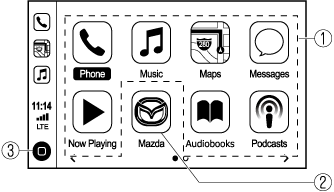
The icons and icon positions displayed on the Apple CarPlay™ home screen may differ depending on the connected iPhone® and iOS version.
|
No. |
Icon |
Explanation |
|---|---|---|
 |
Icon for connected iPhone® |
Launches the Apple CarPlay™ application. Refer to the help information available with each application for the method of using each application. |
 |
 |
Switches to the Mazda Connect home screen. |
 |
 |
Displays the Apple CarPlay™ home screen. |
Convenient Ways to Use Apple CarPlay™
|
Item |
Operation method |
|---|---|
|
Activating the voice recognition function (Siri®)*1 |
Activate Siri® using any of the following two methods to operate Apple CarPlay™ by voice.
|
|
To display the NowPlaying screen |
When music is playing in Apple CarPlay™ and a screen other than the NowPlaying screen is being displayed, press |
|
To display the MAP screen |
When using map route guidance in Apple CarPlay™ and a screen other than the MAP screen is being displayed, press |
|
To return to Mazda Connect screen |
Press and hold |
 .
. on the commander switch to display the NowPlaying screen.
 on the commander switch to display the MAP screen.
-
The voice recognition function of Mazda Connect cannot be used while Apple CarPlay™ is connected.
To End Apple CarPlay™
To end Apple CarPlay™, disconnect the Apple®-genuine connector cord from the USB terminal and disconnect the iPhone® from the connector cord.
If the connector cord is disconnected from the USB terminal during music playback using Apple CarPlay™, the audio source selection will no longer be available and the vehicle's audio device will be muted.